Live window previews
Dynamic thumbnails powered by ScreenCaptureKit. The selected window refreshes in real time, with 60/30/15 fps tiers and adjustable quality.
DockGo is a faster Mac window switcher: bind one global hotkey to each favorite app, hold it to see live previews of every window of that app, and release to land on the target window. One press to launch, one click to split the screen — minimized windows and those on other Spaces are just a switch away.

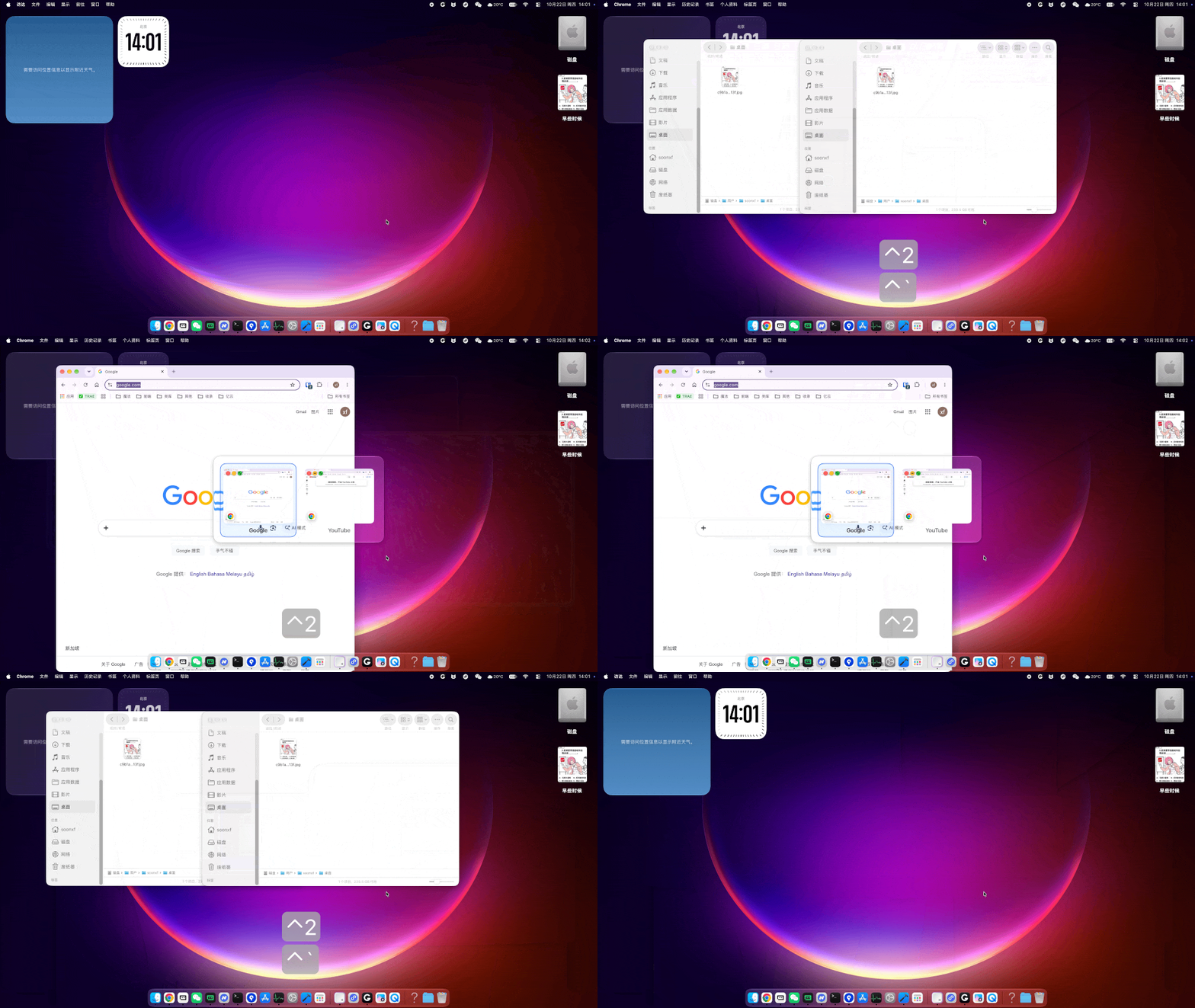
Launch, switch, preview and close — all in one fluid motion.
Dynamic thumbnails powered by ScreenCaptureKit. The selected window refreshes in real time, with 60/30/15 fps tiers and adjustable quality.
Global key combos work in any interface, with automatic conflict detection on registration. Press-and-hold to bring up, release to activate.
Minimized windows are dimmed and labeled; windows on other Spaces show their Space number. Native full-screen windows are reachable too.
Closing a window shatters the image into flying particles, or softly dissolves it. GPU-rendered, with three direction and speed levels.
On macOS 26, Liquid Glass offers 20 glass variants. Older systems automatically fall back to the native frosted-glass look.
After bringing up the switcher, keep holding: W closes, comma minimizes, F goes full screen, Shift reverses direction, Esc cancels. All rebindable.
Thumbnails and the panel are preheated at launch so the first invocation feels instant. Frames are captured on demand — no endless idle animations.
Window footage is used only for local previews — never uploaded or collected. Logging is off by default; all data stays on this Mac.
The system Command-Tab switches app by app; DockGo’s window switcher lets you see and jump to the exact window — one fewer step in your window management.
Hold the hotkey and the switcher pops up live thumbnails of every window of that app. No need to remember window titles — pick the window by its picture and switch directly.
Each favorite app gets its own global hotkey. Hold it in any interface to bring up the window switcher and release to activate the target window — faster than tapping through Command-Tab.
Without letting go you can close, minimize, go full screen or split the screen with one click; minimized windows and those on other Spaces are reachable too, so window management no longer means clicking the Dock.
Answers about installation, permissions and licensing.
macOS 14 or later, on both Apple silicon and Intel Macs. The Liquid Glass interface enables automatically on macOS 26 and later; older systems fall back to native frosted glass with no loss of functionality.
Switching apps and activating or restoring windows — including windows on other Spaces — relies on the macOS Accessibility API. Without it, core switching cannot work.
Live window thumbnails are provided by ScreenCaptureKit, which requires Screen Recording permission. Without it, hotkey launch and switching still work; the switcher simply shows no window footage.
The free version lets you add 1 app with the full switching and preview experience. A licensed version removes the app limit. The license is bound to your machine code and activates automatically after payment.
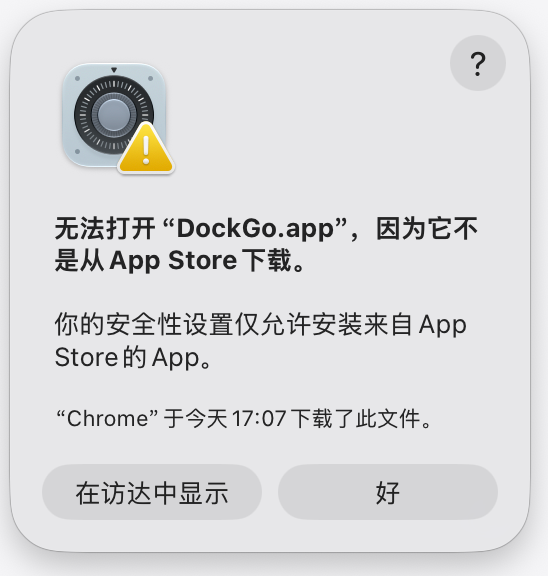
That's macOS's default policy for apps outside the App Store. Open System Settings → Privacy & Security, and under Security select “App Store and identified developers”, then go back to Applications and double-click DockGo again. The download dialog walks you through it with screenshots.
Open DockGo and go to Settings → License. The code is 4 groups of 4 characters, e.g. QH61-CT36-GVH4-S1YJ. Buying from inside the app takes you to the license page with the code prefilled.
Command-Tab switches between app icons; when one app has several windows you still need Command-~ to reach a specific window. DockGo’s window switcher binds a dedicated hotkey to each favorite app: hold it to show live thumbnails of every window of that app, release over the one you want to jump straight to it, and you can also close, minimize, go full screen or split the screen along the way.
Add a favorite app in DockGo and assign it a global hotkey: press once to launch it when it isn’t running; in any interface, hold the hotkey to bring up the window switcher, move left or right to select a window, and release to switch. Keep holding and use W to close, comma to minimize, F for full screen — plus one-click split screen. Minimized windows and windows on other Spaces can be switched to directly as well.

A compact installer with step-by-step permission guidance on first launch — you'll be up to speed in minutes.
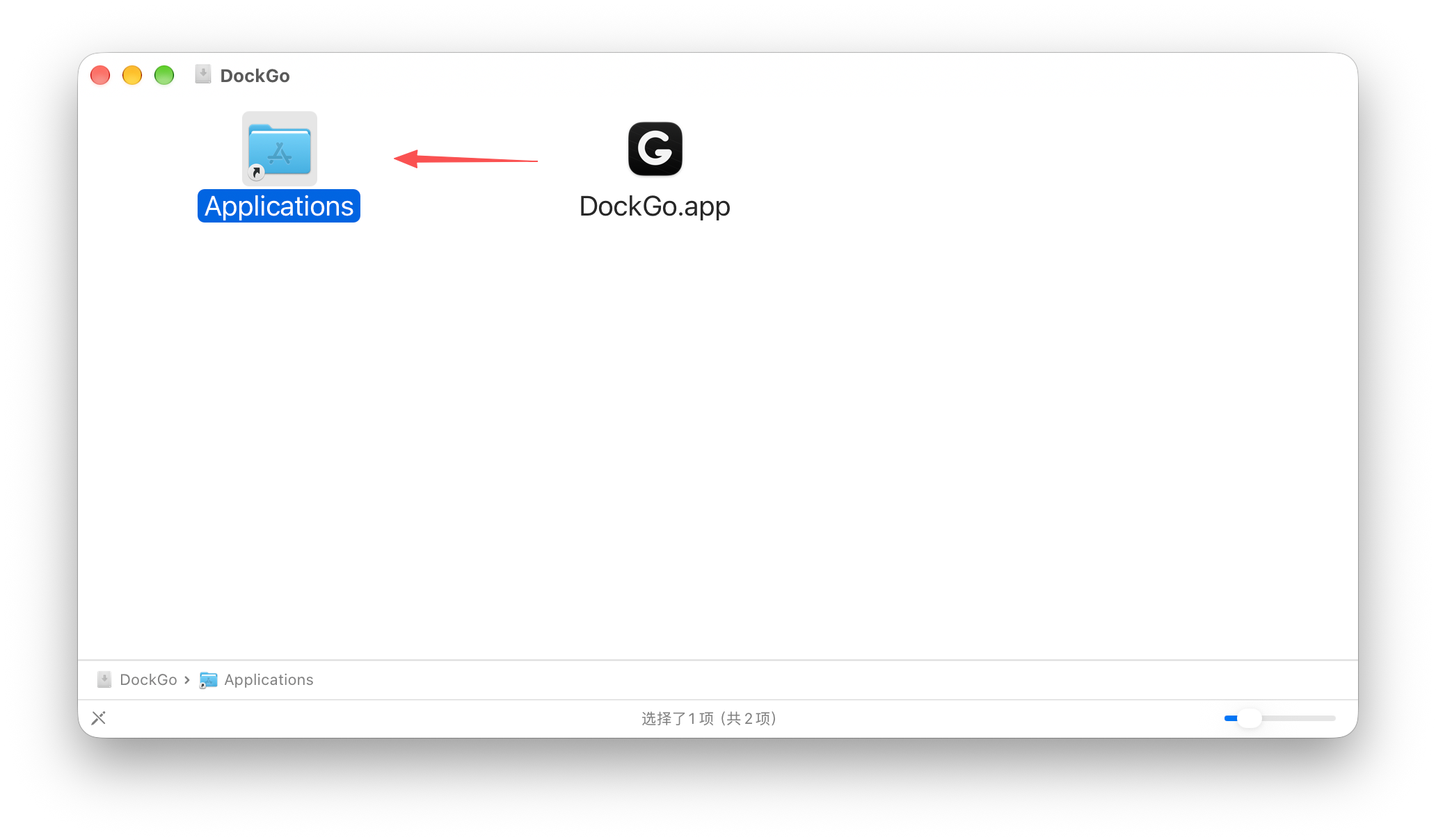
Follow the first three steps in order, then download the installer in step four.
DockGo isn't distributed through the App Store. If macOS says it cannot be opened, go to Privacy & Security and allow apps from identified developers, then launch it again.
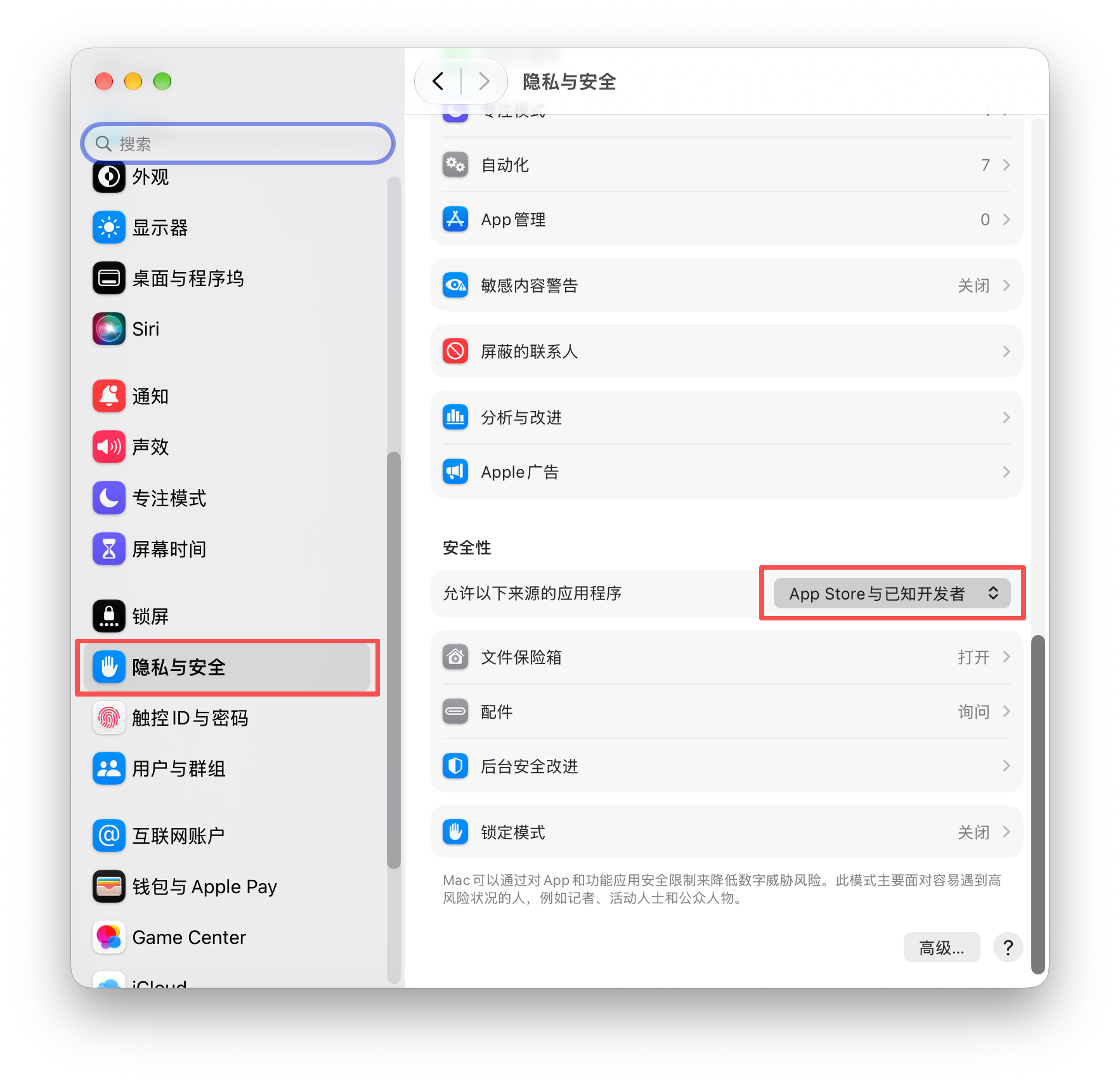
After changing the setting, go back to Applications and double-click DockGo to open it again.
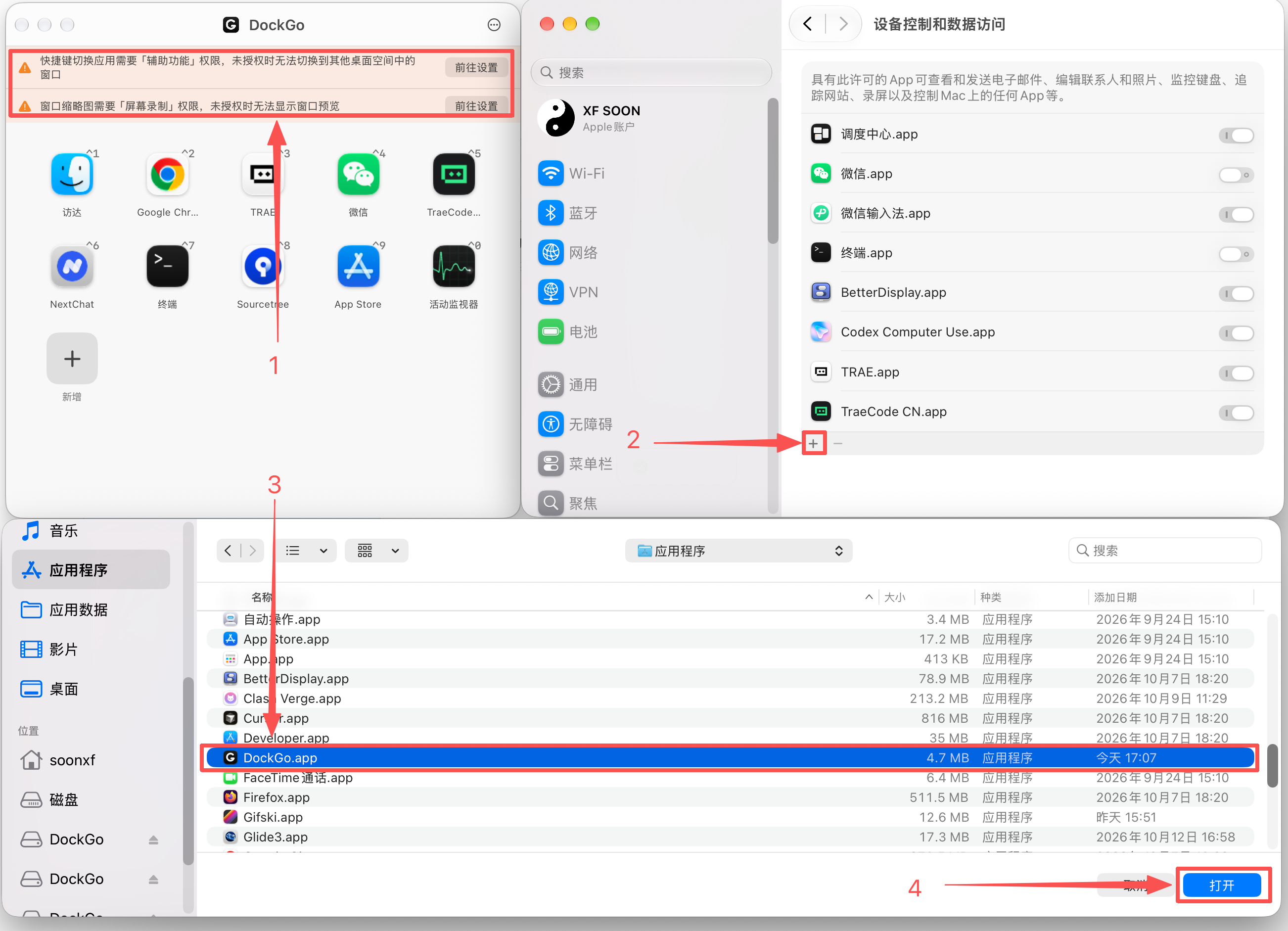
On first launch DockGo shows a permission banner. Click “Open Settings”, then use “+” in System Settings to add DockGo and turn on its switches.
Used to switch apps and activate windows across Spaces.
Used for live window thumbnails. Hotkey switching still works without it.
Quit and reopen DockGo once you're done.
Click “Open Settings” in the banner → click “+” to add DockGo → select “DockGo.app” and click “Open”.
When the download finishes, go back to step one: drag into Applications → allow opening → enable permissions.
Download started. When it finishes, begin with step one.
Scan the code to join the community group (WeChat)